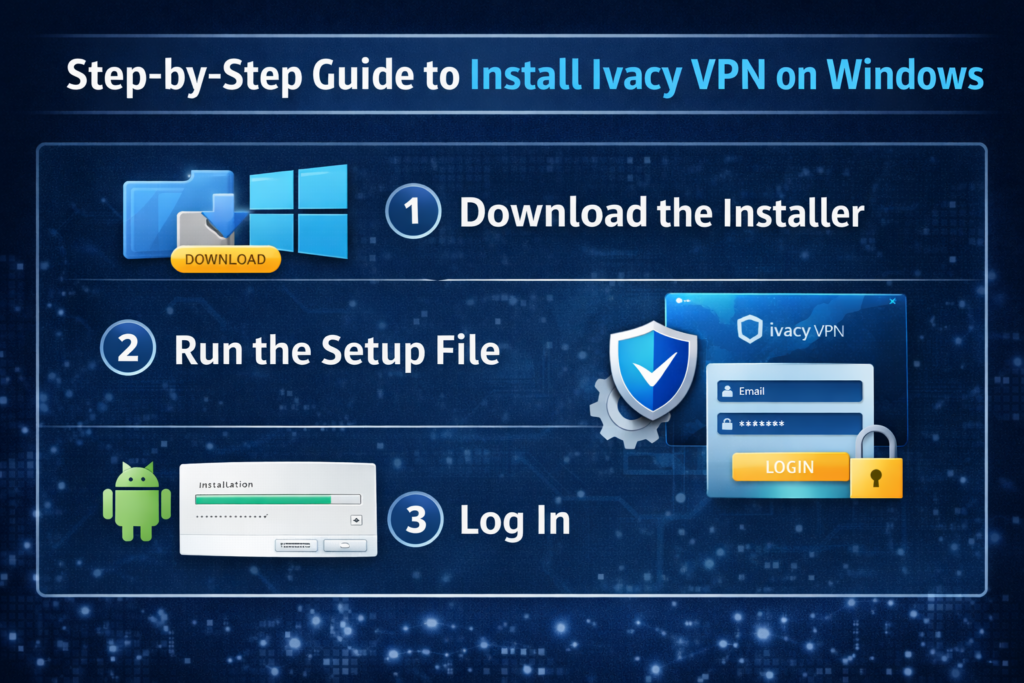
Learn how to set up Ivacy VPN quickly and easily for secure, private browsing across all your devices. This step-by-step guide covers installation, configuration, advanced security settings, and troubleshooting tips to help you protect your data, hide your IP address, and browse the internet safely using Ivacy VPN.
Table of Contents
Introduction to Ivacy VPN
Ever feel like someone might be watching what you do online? You’re not paranoid. In the digital world of today, data tracking is pervasive. That’s where Ivacy VPN steps in.
Ivacy VPN is a virtual private network designed to encrypt your internet traffic and keep your online activity private. Think of it as a secure tunnel between your device and the internet. Nobody can peek inside—not hackers, not advertisers, not even your ISP.
And in 2026, online privacy isn’t optional. It’s essential.
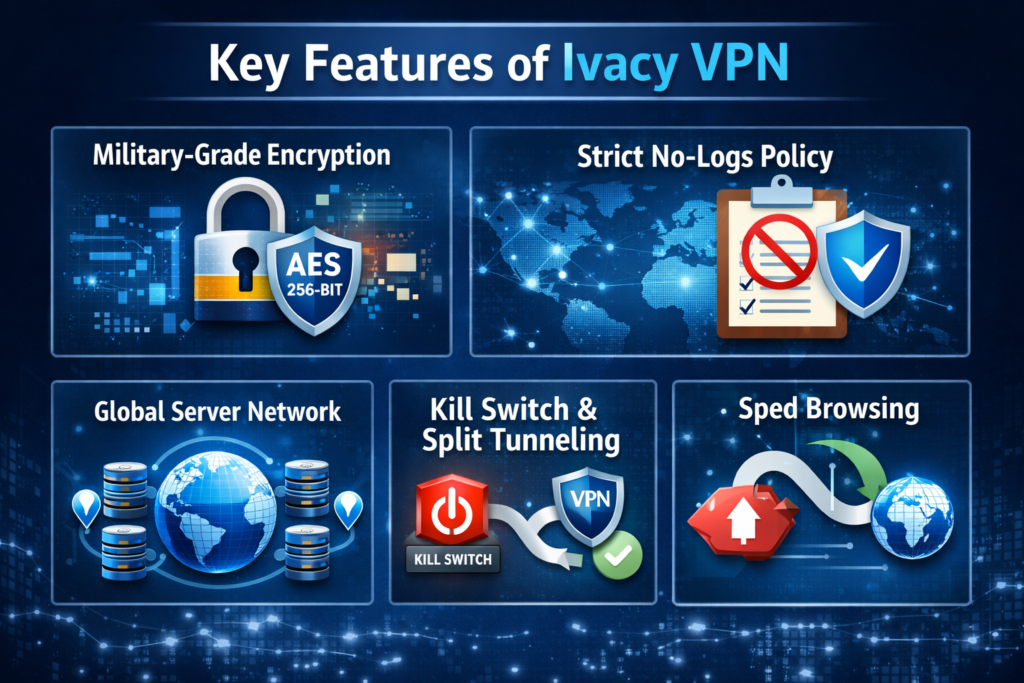
Key Features of Ivacy VPN
Military-Grade Encryption
Ivacy uses 256-bit AES encryption. That’s the same level of security used by governments and financial institutions. It’s like locking your data inside a digital vault.
Strict No-Logs Policy
Your browsing history stays yours. Ivacy claims it does not store logs of user activity.
Global Server Network
Ivacy offers servers in multiple countries, allowing you to connect globally without restrictions.
Kill Switch and Split Tunneling
If the VPN connection drops, the kill switch immediately disconnects your internet. No accidental data leaks.
You can select which apps use the VPN and which don’t with split tunneling. Smart, right?
Why You Need a VPN for Secure Browsing
Let’s be honest—public Wi-Fi is risky. Coffee shops, airports, hotels… they’re hacker playgrounds.
A VPN:
Encrypts your data
Hides your IP address
Prevents tracking
Bypasses geo-restrictions
It’s like wearing invisibility armor online.
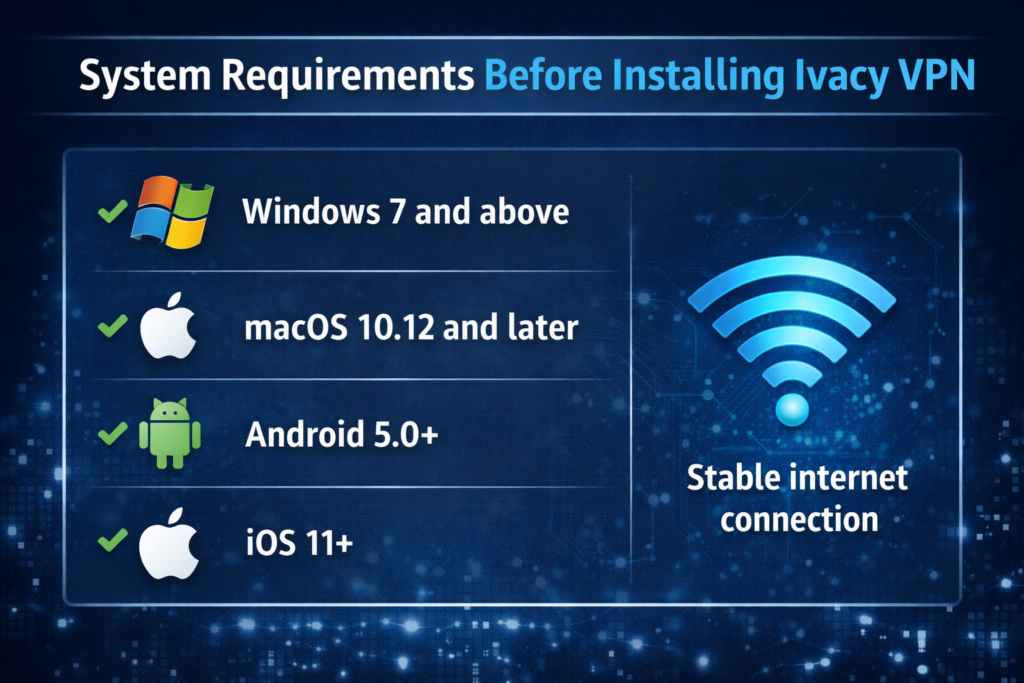
System Requirements Before Installing Ivacy VPN
Before installing, check this:
Windows: Windows 7 and above
macOS: macOS 10.12 and later
Android: Android 5.0+
iOS: iOS 11+
Stable internet connection
Simple and lightweight. No supercomputer required.
Click the “Smart Connect” button. Ivacy automatically selects the fastest server.
Manual Selection
Want a specific country? Choose from the server list.
It’s like teleporting your internet location.
Configuring Advanced Security Settings
Enable Kill Switch
Go to Settings → Enable Kill Switch.
Activate Split Tunneling
Choose which apps go through the VPN.
Select VPN Protocol
Ivacy offers multiple protocols (like OpenVPN). For most users, default works perfectly.
Testing Your VPN Connection
Don’t just assume it’s working—test it.
Search “What is my IP” before and after connecting.
Run DNS leak test online.
Perform a speed test.
If your IP changes and no leaks appear, you’re secure.
Troubleshooting Common Ivacy VPN Issues
Slow Speed?
Switch servers.
Try different protocol.
Check internet speed without VPN.
Connection Drops?
Enable kill switch.
Restart app.
Reinstall if needed.
Login Errors?
Reset password.
Ensure subscription is active.
Simple fixes solve most issues.
Tips for Maximum Security While Using Ivacy VPN
Want next-level protection?
Keep app updated.
Use strong, unique passwords.
Enable two-factor authentication if available.
Avoid suspicious websites.
VPN is powerful—but smart browsing matters too.
Is Ivacy VPN Worth It for Secure Browsing?
Pros
Strong encryption
Affordable pricing
Easy to use
Multi-device support
Cons
Speed may vary by server
Advanced features may require tweaking
Overall? Solid value for everyday secure browsing.
Conclusion
Setting up Ivacy VPN is surprisingly simple. Whether you’re on Windows, Mac, Android, or iPhone, the process takes just minutes. And once it’s running, you gain encrypted browsing, safer public Wi-Fi use, and improved privacy.
In a world where digital threats evolve daily, using a VPN isn’t overkill—it’s smart living.
So why browse exposed when you can browse protected?